
How to Create a WordPress Duplicate Page: 3 Simple Methods
Creating new pages on your website often involves repeating the same layouts, formats, and settings. Whether you’re launching a new landing page, adding a service page, or publishing a case study, starting from scratch every time is inefficient. Learning how to create a WordPress duplicate page is a simple skill that can significantly speed up your content workflow, ensure design consistency, and free up time for more strategic tasks. This guide covers three straightforward methods to clone pages in WordPress, suitable for any level of user.
Why Duplicate a WordPress Page?
Duplicating a page is more than just a convenient shortcut. It’s a practical technique for marketing agencies, SaaS companies, and content teams that helps maintain quality and efficiency. Here are a few key reasons to clone a page:
- Maintain Design Consistency: When you duplicate a page, you also copy its layout, styling, and formatting. This ensures that new pages match your site’s existing design language, providing a consistent user experience across your entire website.
- Speed Up Content Creation: For pages that follow a template, such as landing pages, product pages, or team member bios, duplication is a major time-saver. You can clone an existing page and simply update the text and images instead of rebuilding the structure from zero.
- Create a Staging Environment: If you need to make significant changes to a live page, you can duplicate it to create a private draft. This allows you to work on the updates safely without affecting the public-facing version. Once you’re ready, you can publish the new version and unpublish the old one.
- A/B Testing: Duplicating a page is the first step in A/B testing different headlines, calls-to-action, or layouts. You can create a clone, make a specific change, and then use testing tools to see which version performs better with your audience.
Method 1: Use a Dedicated WordPress Plugin
For most users, the easiest and quickest way to duplicate pages and posts is with a plugin. Several reliable plugins add this functionality to your WordPress dashboard with just a few clicks. This method avoids any need to interact with code and integrates directly into your existing workflow.

Here’s how to do it:
- Choose and Install a Plugin: From your WordPress dashboard, navigate to Plugins > Add New. Use the search bar to look for terms like “duplicate page,” “clone,” or “copy post.” Popular options often have thousands of positive reviews and are regularly updated. Click “Install Now” on the plugin of your choice, then click “Activate.”
- Configure Plugin Settings (Optional): Some plugins, like Yoast Duplicate Post, offer configuration options. You can choose what elements to copy (title, content, featured image, etc.) and define user roles that are permitted to duplicate pages. You can typically find these settings under Settings > Duplicate Post.
- Duplicate Your Page: Go to Pages > All Pages. Hover your mouse over the page you want to copy. You will now see a new link, such as “Clone” or “Duplicate.” Click this link.
- Edit the New Draft: The plugin will instantly create a new, unpublished draft of your page. It will typically have a title like “[Original Page Title] Copy.” Click “Edit” to open the new page in the editor, where you can modify its content, title, and URL slug before publishing.
Method 2: Use the WordPress Block Editor
If you prefer to keep your site lean and avoid installing extra plugins, you can duplicate a page’s content using the built-in functionality of the WordPress Block Editor (Gutenberg). This method doesn’t copy page settings like the template or featured image, but it’s perfect for quickly replicating a layout.
Follow these steps:
- Open the Source Page: Navigate to the page you wish to duplicate and open it in the Block Editor.
- Copy All Blocks: In the top-right corner of the editor screen, click the three-dot menu icon to open the options panel. From the dropdown menu, select “Copy all blocks.” This action copies the entire page content and structure to your clipboard.
- Create a New Page: Go to Pages > Add New to create a blank page.
- Paste the Blocks: In the new page’s editor, right-click inside the first empty block and select “Paste,” or simply use the keyboard shortcut (Ctrl+V or Cmd+V). All the blocks from the original page will appear, preserving the layout and content.
- Update and Publish: Give your new page a unique title, update its content, and configure its settings before hitting “Publish.”
Method 3: Add Custom Code to functions.php
For advanced users who are comfortable editing theme files, adding a custom PHP function is a powerful way to enable page duplication without a plugin. This method is lightweight and gives you full control over the functionality. Before you begin, it’s highly recommended to use a child theme to avoid losing your changes when you update your main theme.
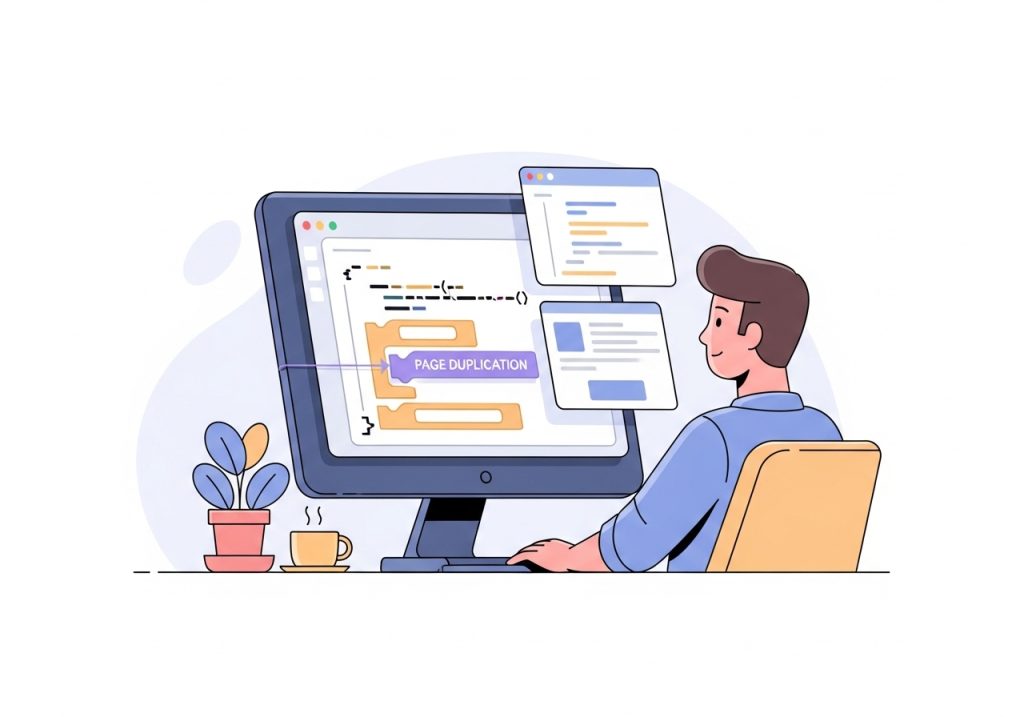
Here’s the general process:
- Access Your functions.php File: You can access this file by going to Appearance > Theme File Editor from your dashboard and selecting the `functions.php` file from the list on the right. Alternatively, you can access it via FTP or your hosting provider’s file manager.
- Add the PHP Snippet: Copy and paste a function designed to duplicate posts and pages into the bottom of your `functions.php` file. You can find many reliable snippets online with a quick search for “WordPress duplicate post function php.” These functions typically work by hooking into WordPress actions to add a “Duplicate” link to the page list.
- Save the File: After adding the code, save the `functions.php` file.
- Test the Functionality: Navigate back to Pages > All Pages. When you hover over a page title, you should now see a “Duplicate” link, similar to how a plugin works. Clicking it will create a new draft of that page.
SEO Considerations for Duplicated Pages
While duplicating pages is a great productivity tool, it’s important to manage the new pages correctly to avoid SEO issues. Search engines penalize websites for having identical or nearly identical content on multiple URLs. When you create a WordPress duplicate page, remember to:
- Change the Title and URL Slug: The most important step is to give the new page a unique title and permalink (URL slug). WordPress usually appends “-copy” or “-2” to the slug automatically, but you should change it to something descriptive and relevant to the new page’s content.
- Rewrite the Content: The body content, headings, meta descriptions, and image alt text should all be updated to be unique. Use the duplicated page as a template, not as the final content.
- Use Canonical URLs: If you must have pages with very similar content (for example, targeting slightly different locations), it’s important to learn how to properly use canonical URLs. This tells search engines which version of the page is the “main” one to index, preventing duplicate content issues.
Beyond Layouts: Automating Your Content Workflow
Duplicating page layouts solves one part of the efficiency puzzle. However, the bigger challenge for agencies and SaaS companies is often the process of creating effective SEO content at scale. After you’ve cloned your template, you still need to perform keyword research, write original copy, find images, and optimize everything for search engines. For teams managing multiple clients or extensive content calendars, this process remains a significant bottleneck. This is where choosing the right SEO automation tools can make a substantial difference, helping you streamline everything from topic ideation to final publication.
Whether you choose a plugin, the Block Editor, or custom code, knowing how to create a WordPress duplicate page is a valuable skill. It streamlines your workflow, ensures brand consistency, and lets you focus on what truly matters: publishing high-quality content that engages your audience and drives growth.
Tired of the Manual Content Grind?
Duplicating pages saves time on design, but what if you could automate the entire content lifecycle? Ascend is a complete content automation tool for WordPress that handles everything from keyword research and content calendar creation to writing, imaging, and publishing. Stop spending hours on manual tasks and let Ascend publish a high-quality, SEO-optimized blog post for you every day, directly from your WordPress dashboard. Discover how Ascend can scale your organic traffic without scaling your team.

Written by
Ascend
Ascend is an automated SEO engine for WordPress. It handles keyword research, writes high-quality, search-optimized content, and publishes it directly to your site, so your traffic can grow on autopilot. Learn more